User Select Screen
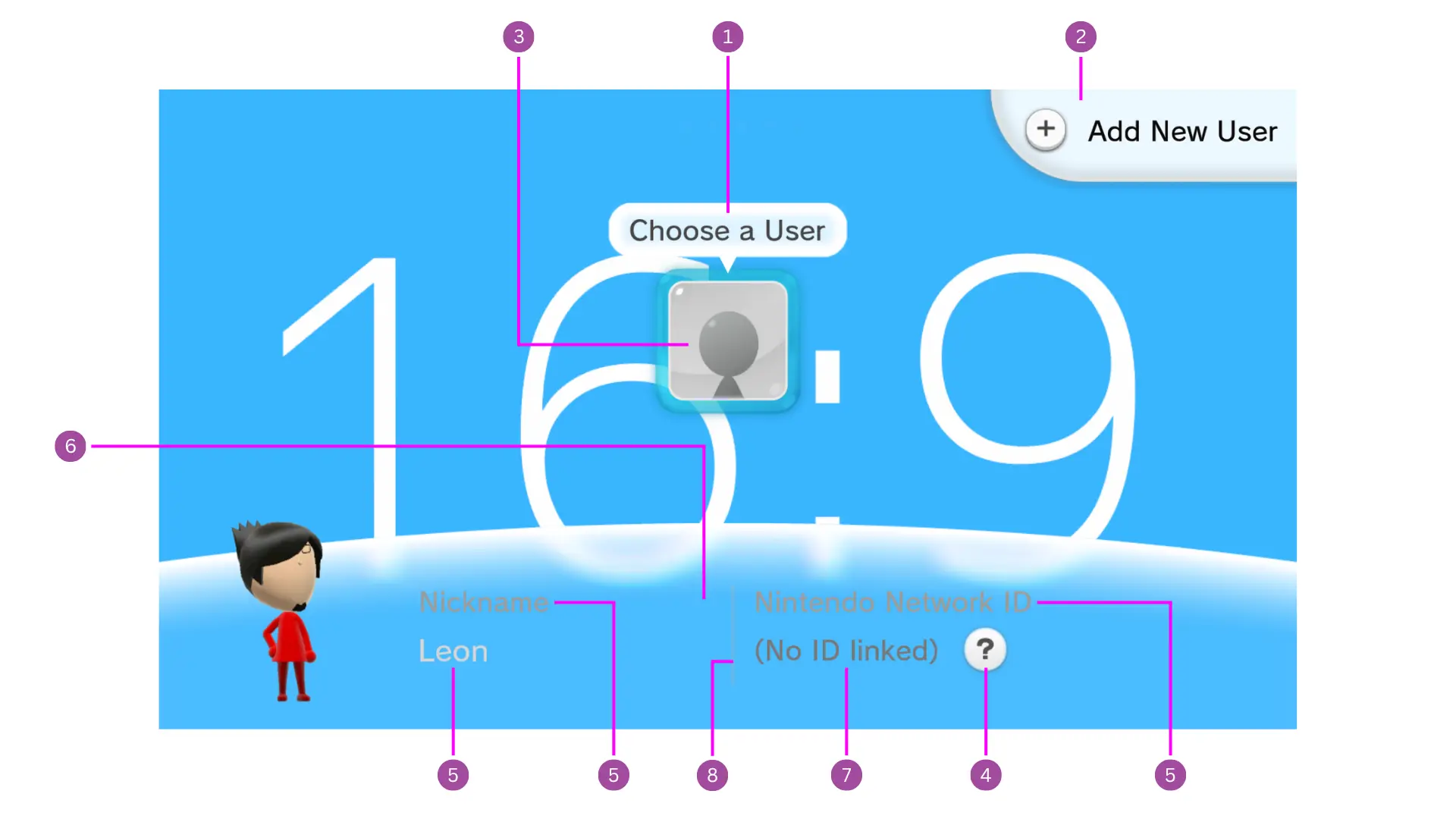
For the file AccountSelect
- Go to
Men2.pack > Common > Layout > AccountSelect - Right click > Export Raw Data
- Save it on your device
- Open
AccountSelect.szson a new Switch Toolbox window- If you open it on the same window as you have your
Men2.pack, Switch Toolbox will crash
- If you open it on the same window as you have your
1. Account Text Balllon
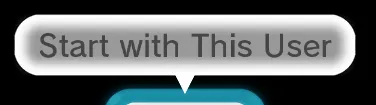
Men2.pack > Layout > AccountBalloon.szs
Balloon
You can change the Color of this by changing the materials W_Balloon and W_BalloonLT
Text
RootPane > N_Trans > N_Scale > T_Balloon
- Go to
Text Pane > Fontand change the color
2. Add New User Button
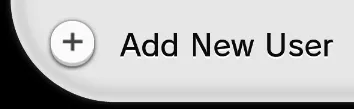
Men2.pack > Layout > BtnCornerPlusRT.szs
You can change the Texture(s) of this.
You can change the material Color of
W_Btn_00LTfor the base color of the button.W_BtnSelect_00LTfor the color when you hover over the button.W_BtnInvalid_00LTfor the color when the button is not active.BtnKeyPlusfor the color of the plus "+" button
3. Account Button

Men2.pack > Layout > BtnAccountSelect.szs
You can change the Texture(s) of this
If you want to change the color
- Open the
bflytfile - Go to
Rootpane > N_Active > N_Btn > P_Base - Select the
Picture panetab - On
Vertex ColorsclickAll - Change the color
If you want to change the color of the blue frame
- Change the Color of the material
ActiveFrame_01
4. Help Button
Men2.pack > Layout > BtnHelp.szs

You can change the Color / Texture of this by changing the material BtnHelp
5. Text

Men2.pack > Layout > AccountSelect.szs > AccountSelect.bflyt > RootPane > N_Root
- "Nickname" Text:
T_NameTitle - Mii Name:
T_Name - "Nintendo Network ID" Text:
T_NNIDTitle - User Network ID:
T_NNID
To change the color of the text
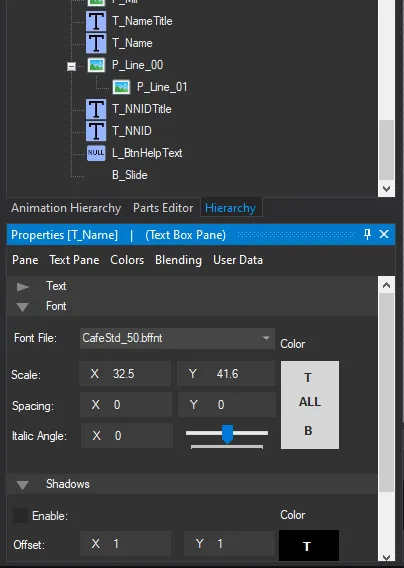
- Select the one you want to change
- Go to
Text Pane > Fontand change the color
6. User Info Background

Men2.pack > Layout > AccountSelect.szs
You can change the Color of this by changing the material P_Bg
7. No ID Linked Text
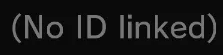
Men2.pack > Layout > BtnHelpText.szs
Switch ToolBox crashes upon opening this file, because of this, there's no instructions to modify it.
8. Line
Men2.pack > Layout > AccountSelect.szs
You can change the Color of this by changing the material P_Line_00 and P_Line_01