Folder
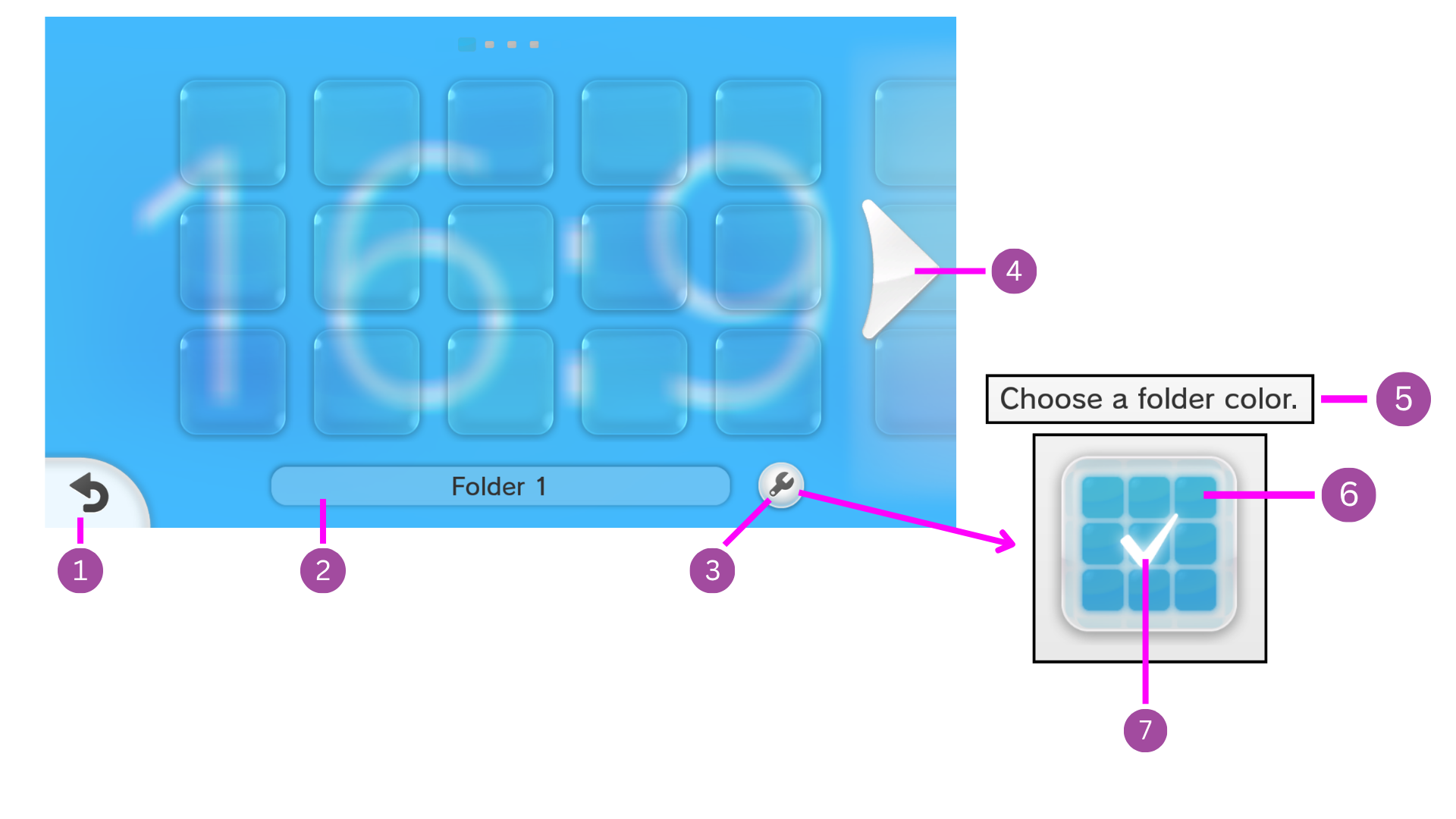
1. Back Button

Men2.pack > Layout > BtnFolderCornerLBW.szs > BtnFolderCornerLBW.bflyt
You can change the Color / Texture of this by changing the materials
W_Btn_00LTfor the main button.W_BtnSelect_00LTfor the button when selected.P_Pict_00&P_Pict_01for the arrow.
2. Folder Name Button

You can change the color of this
Text: First Time Enter
Located in Men2.pack > Layout > FolderBase.szs > FolderBase.bflyt.
- Go to
QuickAccess > Part Panes > L_FolderName > T_Text_00 > Text Pane > Fontand change the color.
Text: Decide, Select & Unselect
Located in Men2.pack > Layout > BtnFolderName.szs > BtnFolderName.bflyt.
- Go to Animation Hierarchy.
-
Select the animation you want to modify:
BtnFolderName_Decide.bflanBtnFolderName_Select.bflanBtnFolderName_Unselect.bflan
-
Go to
T_Text_00 > Vertex Color -
Change the values of the following targets:
LeftTopRedLeftTopGreenLeftTopBlueLeftBottomRedLeftBottomGreenLeftBottomBlue
What values do I use?
You can get your color in Hexadecimal values.
For example Pink (#FF8DA1).
Then convert the RGB values to Decimal.
- FF = 255 for Red.
- 8D = 141 for Green.
- A1 = 161 for Blue.
Base Color
Located in Men2.pack > Layout > BtnFolderName.szs > BtnFolderName.bflyt.
First Time Enter
- Go to
RootPane > W_Base_00. - Select the Window Pane Tab.
- Change the Vertex Colors.
Decide, Select & Unselect
- Go to Animation Hierarchy.
-
Select the animation you want to modify:
BtnFolderName_Decide.bflan.BtnFolderName_Select.bflan.BtnFolderName_Unselect.bflan.
-
Go to
W_Base_00 > Vertex Colors. - Change the respective RGBA values for each corner.
What values do I use?
You can get your color in Hexadecimal values
For example Pink (#FF8DA180)
Then convert the RGBA values to Decimal
- FF = 255 for Red
- 8D = 141 for Green
- A1 = 161 for Blue
- 80 = 128 for Alpha
Shadow
Located in Men2.pack > Layout > BtnFolderName.szs > BtnFolderName.bflyt.
Decide, Select & Unselect
- Go to Animation Hierarchy.
-
Select the animation you want to modify:
BtnFolderName_Decide.bflan.BtnFolderName_Select.bflan.BtnFolderName_Unselect.bflan.
-
Change the Material Color for
W_Shdw_00C,W_Shdw_00LT,W_Shdw_00RT,W_Shdw_00LB,W_Shdw_00RB.
3. Folder Settings Button

Men2.pack > Layout > BtnFolderSettings.szs > BtnFolderSettings.bflyt
You can change the Color / Texture of this by changing the materials.
P_Shadow_00for the outer shadow.P_Shadow_01for the inner shadow.P_Pict_01for the color of the button.P_PictSetting_00&P_PictSetting_01for the wrench icon.
4. Folder Arrow

Men2.pack > Layout > BtnSlideFolder.szs > BtnSlideFolder.bflyt
You can change the Color / Texture of this by changing the materials.
P_BtnSlideRfor the right arrow.P_BtnSlideLfor the left arrow.
Removing the blur
Right arrow
- Go to
RootPane > N_BgR > PF_RBtnMask. - Click on the
Panetab. - Uncheck
Pane visible.
Left arrow
- Go to
RootPane > N_BgL > PF_LBtnMask. - Click on the
Panetab. - Uncheck
Pane visible.
5. Choose a folder color Text

Men2.pack > Layout > DialogFolderColor.szs > DialogFolderColor.bflyt
You can change the Color of this.
- Go to
RootPane > N_Contents > T_Text_00 > Text Pane > Fontand change the color.
6. Folder Color Button
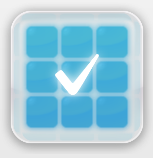
Men2.pack > Layout > BtnFolderColor.szs > BtnFolderColor.bflyt
You can change the Textures of this.
P_IconFolder_00,P_IconFolder_01&P_IconFolder_02for the folder icon.
7. Checkmark

Men2.pack > Layout > BtnFolderColor.szs > BtnFolderColor.bflyt
You can change the Color / Texture of this by changing the material Checkmark.