Themiify
Themiify is a homebrew application that allows for on the fly installation of Wii U Menu themes via the Themezer API or via .utheme files placed on an SD Card.
Once a theme is installed StyleMiiU will read the theme and show it the next time the Wii U Menu is loaded.
No system file is modified by this app.
What you need
- A modded Wii U with Aroma.
- Themiify (Also available on the Homebrew App Store).
- StyleMiiU Plugin (Also available on the Homebrew App Store).
- Your Wii U Theme with the extension
.utheme. (Optional)- These can be obtained from Themezer.
Installation
- Download Themiify and copy the
Themiify.wuhbfile toSD:/wiiu/apps/. - Download StyleMiiU Plugin and copy the file
stylemiiu.wpstoSD:/wiiu/environments/aroma/plugins. - If you have it, copy your
.uthemefile(s) toSD:/wiiu/themes/(This is used for Local Installation).
Installing Themes
Downloading and Installing Themes (Network)
- Turn on your Wii U and boot aroma.
-
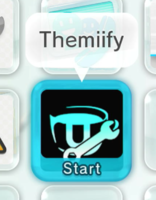
Open Themiify.
-
Select the Network tab.
-
Choose the theme you want to download.
- You can also see a preview of the theme by selecting Details.
-
Confirm the download of the theme with
Yes.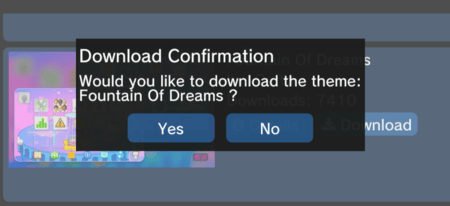
-
After the download is finished, select
Yesto install the theme.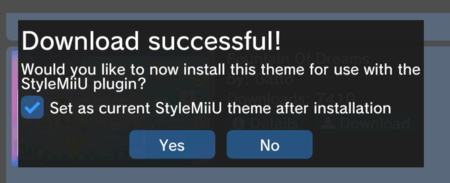
If you decide to not install the theme right away, you will be able to install it later via Local Installation.
-
After the installation is finished, you will be asked to delete the
.uthemetheme archive of the theme you just installed, do so to save storage space.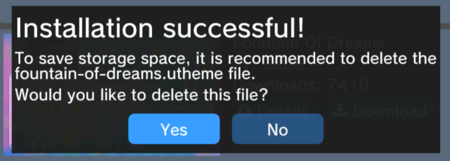
If you see "Installation unsuccessful!" go to Check integrity of Wii U Menu Files
-
Press
Band select the Exit button.
Installing Themes Locally
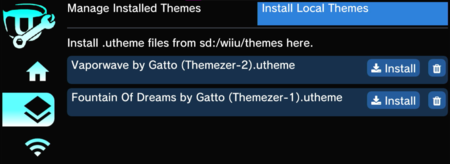
You can install themes locally by placing your .utheme theme archive files in SD:/wiiu/themes/.
- Turn on your Wii U and boot aroma.
- Open Themiify.
-
Select the Local Themes Tab and select Install Local Themes.
-
Install your previously downloaded
.uthemefile. -
After the installation is finished, you will be asked to delete the
.uthemetheme archive of the theme you just installed, do so to save storage space.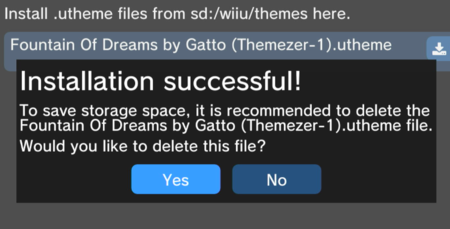
-
Press
Band select the Exit button.
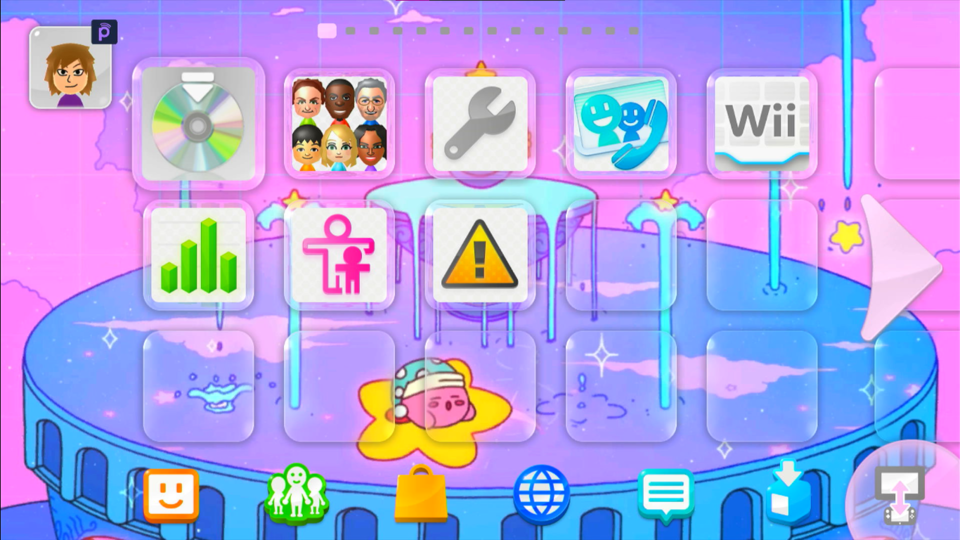
Success
You have succesfully installed a Custom Theme for your Wii U.
If you want to use custom fonts, follow Fonts.
If you want to use a Splash Screen follow Splash Screen
If you have any other issues while using Themiify, please join our Discord Server for support.
Settings
Check Integrity of Wii U Menu Files
This setting checks your if Wii U Menu files have been modified before, if this is the case, Themiify will not be able to install themes correctly, to solve this, You can either restore the Wii U Menu files in the NAND with the original ones or manually place the original files in the SD Card for Themiify to use, this will only cover the latter.
Use JNUSTool to get the original Wii U Menu files that you need and copy them to the corresponding location.
- For
Men.pack,Men2.pack:SD:/themiify/cache/Common/Package/. - For
cafe_barista_men.bfsar:SD:/themiify/cache/Common/Sound/Men/. - For
AllMessage.szs:SD:/themiify/cache/[LANGUAGE]/Message/.- In
[LANGUAGE]use the language that was modified.- For example:
UsEnglish.
- For example:
- In
After that, you should be able to use Themiify normally.
Dump Wii U Menu Files
This setting allows for dumping of the Wii U Menu files commonly used for theming, this includes:
Men.pack&Men2.pack: Most of the important menu assets are stored here.cafe_barista_men.bfsar: Used for Custom Music or Sound Effects.AllMessage.szs(Optional): This files stores the menu text for each individual language and can be used for Custom Text.
To create custom themes, use this option to dump the files and get started with Theme Creation.
Credits to Nathaniel, Alpha Craft, Daniel K. O. & contributors for Themiify